About / Curator
Curator on your
iPhone, in three taps.
Curator has no App Store listing and does not need one. Safari can install it directly, and the result behaves like any other app on your phone — its own icon, its own place in the app switcher, no address bar.
Under the hood
What this actually does
Adding Curator to your home screen does not download anything from an app store. It installs the website as a standalone web app — the same Curator, running in its own window rather than inside Safari. It gets its own icon, opens without the address bar, and takes its own place in the app switcher.
This only works in Safari. Chrome and Firefox on iOS cannot install a web app, because Apple does not let them.
Open Curator in Safari
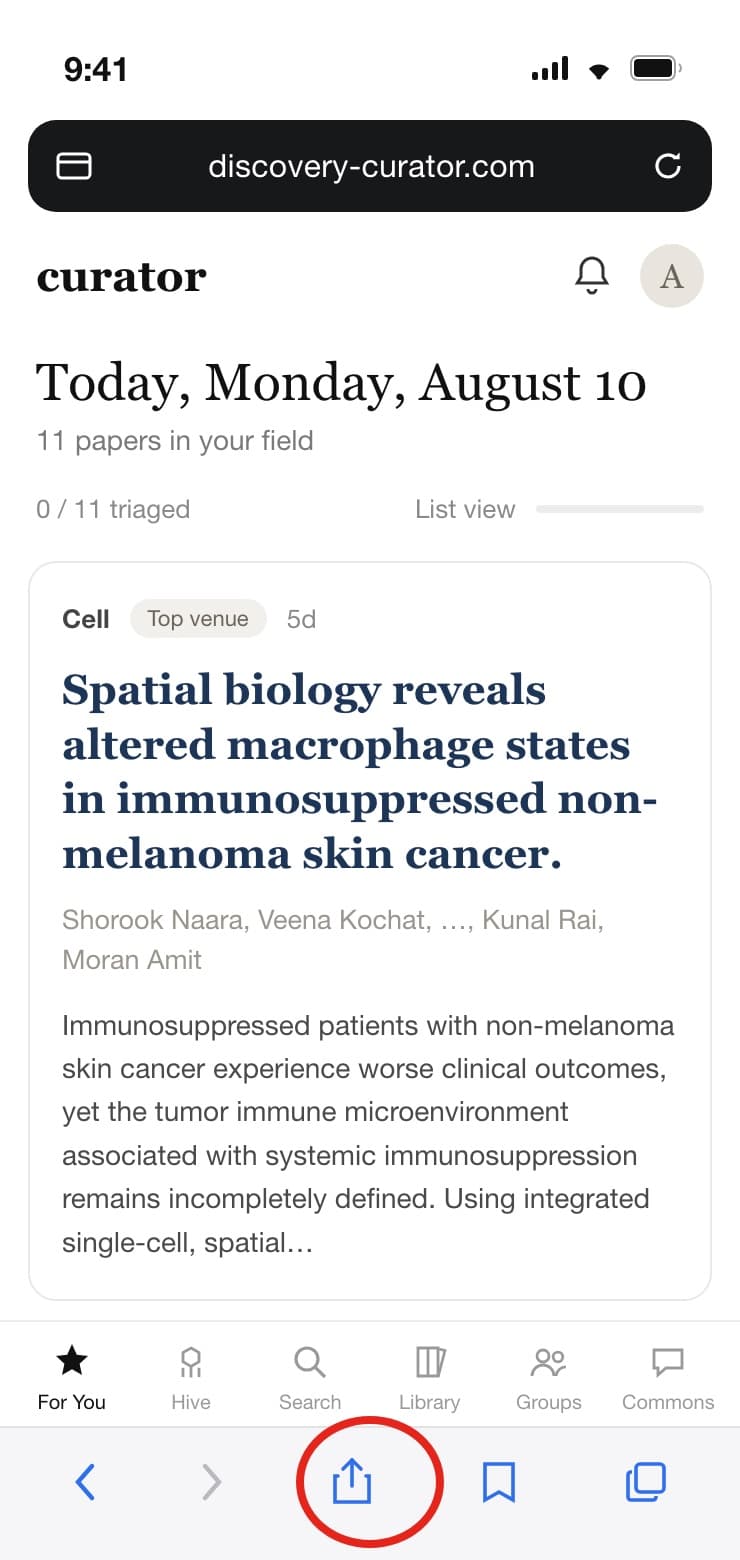
Make sure the home page is showing — the one with the star in the bottom bar, marked For You.
Move your finger to the bottom of the screen and tap the Share icon.
Add to Home Screen
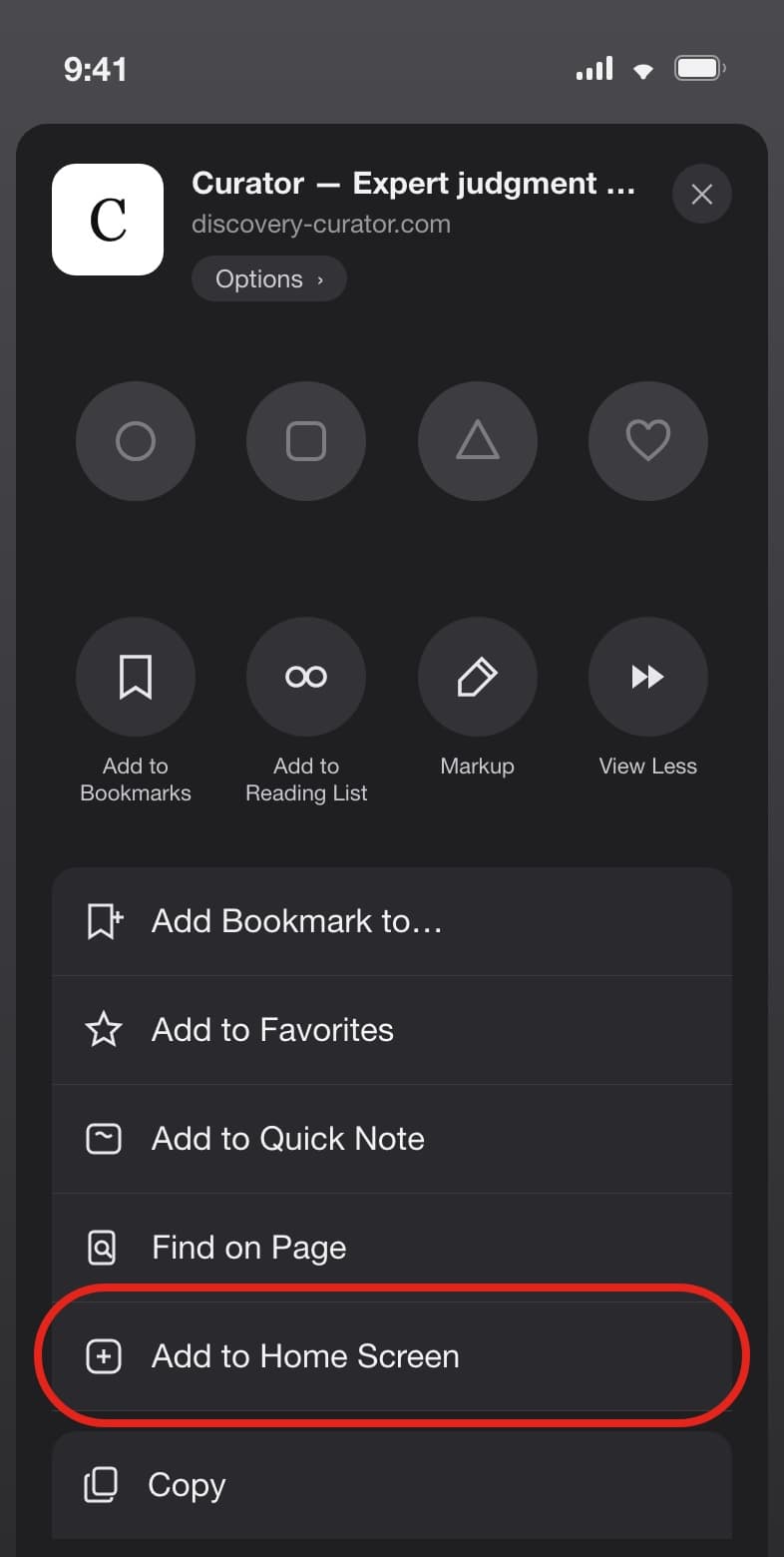
Scroll down a bit, past Add Bookmark, Add to Favorites and Find on Page.
Tap Add to Home Screen. iOS will offer a name — Curator — and you can accept it.
Voilà
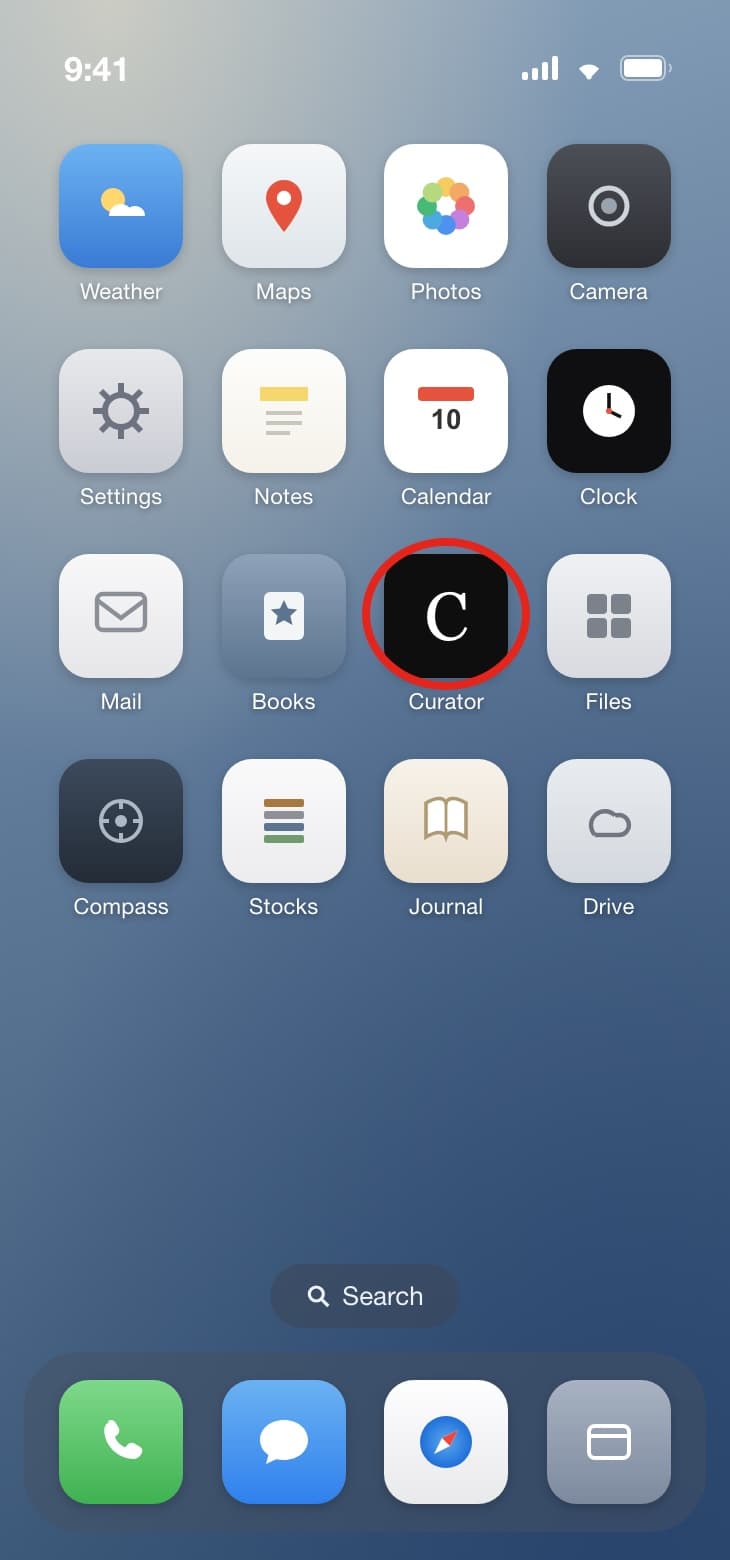
You can move the icon around like any other app.
You may have to log in again.
Elsewhere
Other ways in
On Android, Chrome does the same thing by a different route: open Curator, tap the browser menu, and choose Add to Home screen — some versions call it Install app. The result is the same standalone app, icon and all.
On a desktop there is nothing to install. Curator is a website, and it works in any current browser at discovery-curator.com.
The other way in is not a device at all. If you keep a Zotero library, connecting it teaches Curator your field before you have read a single paper here — see Zotero.
Questions: community@discovery-curator.com